Guide contents
Plans and billing
Plan, credits and invoices.
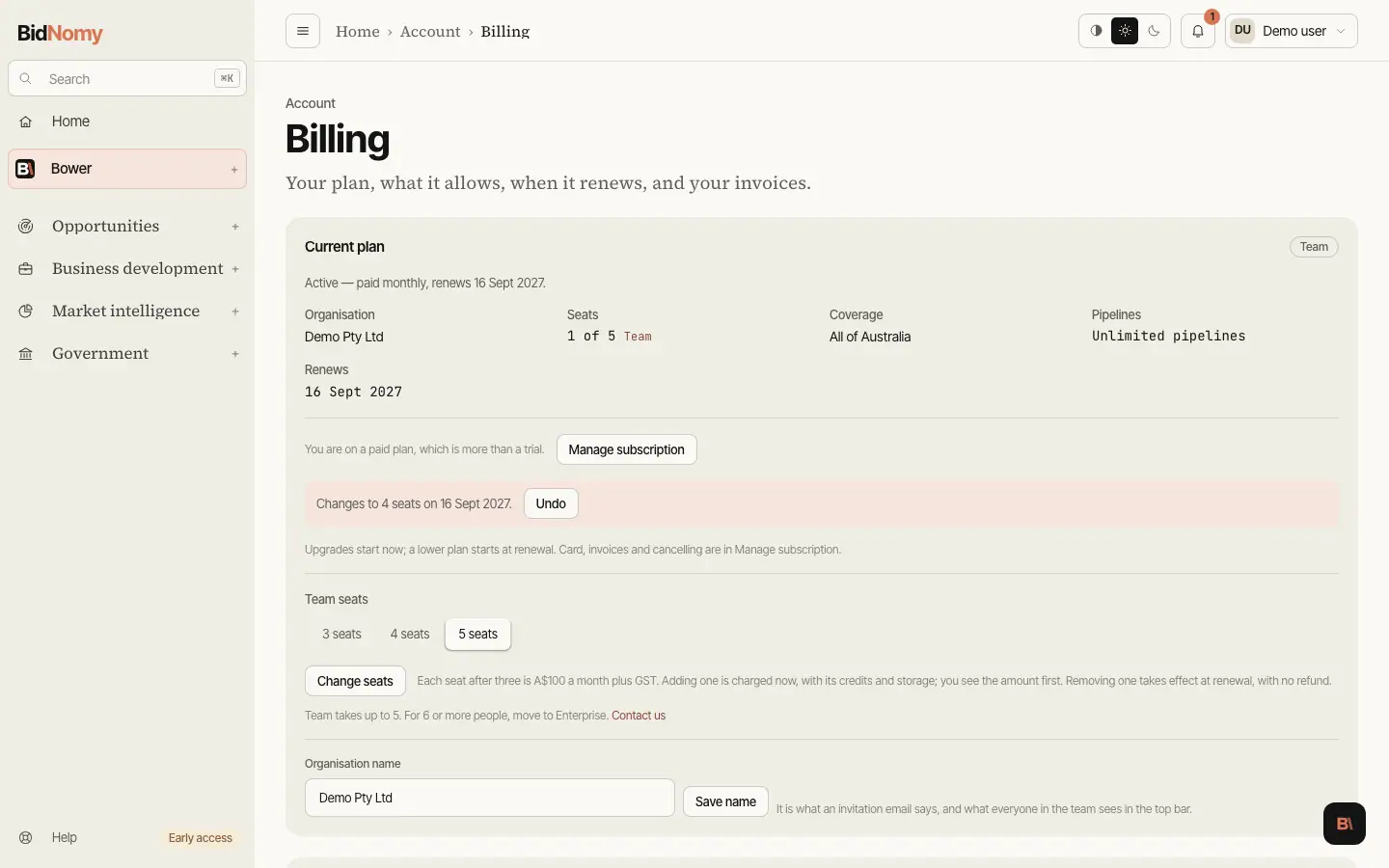
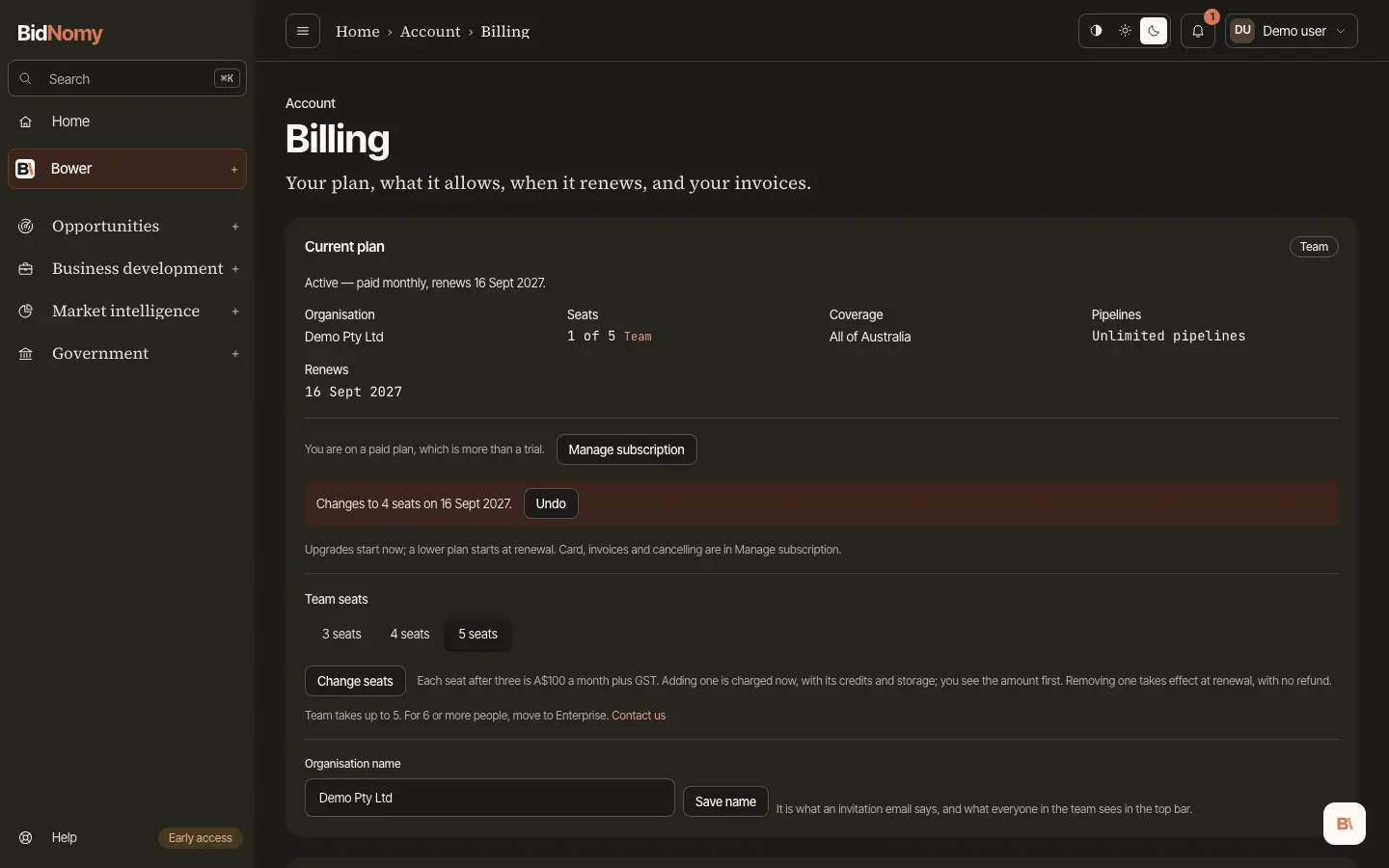
Plans and billing
Billing is the plan the organisation is on, not yours: everybody in the team is on it, and only the owner and administrators can change it. A member sees the whole page and can press none of it. What a plan commits you to — renewal, notice of a price change, and what cancelling does — is in the terms of service.
The free trial. Every new organisation starts one the moment it is created — it is Pro for seven days (the length shown on the pricing page when you sign up): one person, every jurisdiction, 500 AI credits for the week, the full workspace — with no card and nothing to cancel. Free trials are limited per company email domain. The sidebar shows how many days are left; from two days left (day 5) a line at the top of every page counts down, and the owner is emailed on day 5 and on the trial's last day. Home shows a short Get started checklist during the trial (Home). The day after it ends the workspace is locked: lists show no records, record pages say the trial has ended, and a banner at the top of every page links to Billing. The sidebar greys out everything but Home, the account menu stays open, and the Home page says how to get back in: choose a plan on Billing, or join a team that invites you. Everything opens again the moment somebody chooses a plan. A trial is once per organisation and once per person for ever, and limited per company email domain (Free trials per company); cancelling a paid plan later does not bring it back. (An organisation created before 27 September 2026 is on early access and can still start its trial from the Billing page.) Need a few more days? Ask support: BidNomy staff can extend one organisation's trial by up to 30 days.
Your work is kept for 90 days after the plan ends, then deleted: bids, pipelines, solutions, files, saved searches, alerts and Bower chats. The owner and admins are emailed 14 days and 1 day before. Your account and your team stay, so you can still sign in and choose a plan, starting empty. This applies to an ended trial and to an ended paid plan.
Buying a plan. Buy on any of the three priced cards opens Stripe Checkout. Pay monthly or Pay yearly above the cards sets what you are charged — yearly is ten months for twelve — and the prices are in Australian dollars, exclusive of GST; the card details go to Stripe and never to BidNomy. Your plan is live within a minute of the payment going through — usually a second or two — and the Billing page says so if you get back before it lands. Enterprise is quoted rather than bought: its card writes to sales@bidnomy.com.
The four plans (Australian dollars, ex GST; yearly is ten months):
- Essentials — A$100 a month or A$1,000 a year. One person, Commonwealth records, 1,000 AI credits a month, 1 pipeline, 100 MB of files.
- Pro — A$200 a month or A$2,000 a year. One person, every state and territory, 2,500 AI credits a month, 4 pipelines, 400 MB.
- Team — A$500 a month or A$5,000 a year for three people, plus A$100 a person a month (A$1,000 a person a year) up to five. Every jurisdiction, 2,500 AI credits a person a month in one shared pot, unlimited pipelines (fair use), 300 MB a person and shared pipelines.
- Enterprise — from A$900 a month, invoiced. Ten people to start, the MCP server and API keys, company sign-in (single sign-on) and pay by invoice.
Every plan includes Bower AI, Analytics, alerts and every notification channel — Teams, Slack, webhooks, email and Jira. "Unlimited" means fair use.
Plan badges. An item in the account menu that your plan does not include stays in the menu with a small badge naming the plan that has it: Team on Team for Essentials, Pro and the trial (one person, so inviting is Team), and Enterprise on API keys for every plan but Enterprise. The page still opens; it says Available on Team. or Available on Enterprise. with See plans, which goes to Billing. Essentials and Pro are one person per login, on up to two devices. Government records stay in BidNomy — no plan downloads them as a spreadsheet — while your own documents, uploads, pipeline dashboard and AI usage can always be downloaded.
Invoices, the card and cancelling. These happen in Stripe's own billing portal, which Manage subscription opens: update the card, download every invoice, or cancel. Cancelling leaves the plan on until the end of the period you have paid for, and the page then says "Cancels on …" rather than pretending it has already gone. A monthly plan can be cancelled at any time and is not refunded for the month already paid; a yearly plan is refunded in full if you ask support@bidnomy.com within 14 days of its first payment. Credit packs are not refunded. If a payment fails, the plan stays on and the page says the card needs attention — a failed card mid-bid is a message to send, not a workspace to switch off.
AI credits. The card under the plan shows this period's AI credits — the plan's allowance, what is left of it and when it resets (each month on the day you subscribed; upgrading resets your credits to full), the credit packs you hold with their expiry dates — and, for the owner and administrators, Buy a credit pack (1,000, 2,000 or 3,000 credits for A$25, A$50 or A$75 plus GST; see Credit packs).
Plan usage. Under the credits, the card shows how much of each limit is used: AI credits, pipelines, storage and seats. At 80% a line says so; at 100% it says what to do next — a credit pack or the next plan for credits, the next plan for pipelines and storage, and for seats another Team seat (up to five) or Enterprise. Essentials sees "Commonwealth only; upgrade to Pro for every state" on a state's records.
Team seats. Team is bought by the seat: choose 3, 4 or 5 seats on the Team card when you buy it. Later, the owner or an administrator changes the number under Team seats on the Billing page. Adding a seat is charged now for the rest of the period, and its AI credits (2,500 a seat) and storage (300 MB a seat) are there at once. Before anything is charged, a box shows the amount with GST, the card it goes to and what each renewal costs after; Confirm and pay makes the change and Cancel leaves everything as it was. Removing one takes effect at your renewal: you keep the seat until then, and nothing is refunded. You cannot go below the people and invitations you already have. Moving up to Team from a smaller plan starts it with three seats. At five seats the form offers Enterprise for a sixth person (Contact us).
The card's last line says where the credits went; Show usage opens the detail by day, kind and person, the runs ten a page and a CSV of the period. Everyone in the team can open it; a member sees the totals and their own runs only. Recent run clocks and reset timestamps use your device timezone; credit periods and daily usage bars retain Australia/Sydney boundaries. See Where the credits went.
When an AI credit discount is active, Billing shows the percentage off. It applies to runs started during the promotion period, including a run that finishes after the period ends. 0% means normal charging. At 25% off, a run normally costing 10 credits consumes 7: whole credits round down, with a minimum of 1 per run. At 100% off, runs consume 0 credits and can start even when the balance is used up. An active plan or trial is still required. The usage detail shows the credits actually consumed; a discount does not increase the pool.
Changing your plan
Moving up happens at once — from Essentials to Pro, from Pro to Team. On the Billing page, a plan above yours shows Upgrade to …. The difference for the rest of your month or year is charged straight away to the card on file, the new plan's limits apply immediately, and neither your renewal date nor how often you pay moves. AI credits follow the plan: the larger monthly allowance applies for the rest of the month, with what you have already used this month counted against it. If the card is declined nothing changes — update it in Manage subscription and try again.
You see the amount first. Adding seats, Upgrade to … and Switch to yearly open a box with the amount charged now (GST included, and any discount taken off), the card it goes to, and what each renewal costs after. While a discount is running, it shows the discounted renewal and the date the full price starts. Nothing is charged until you press Confirm and pay. If the box sat open too long the amount is worked out again and you confirm the new figure.
Some banks ask you to approve the payment. If yours does (3-D Secure), you are taken to a Stripe page to approve it. The change is made once it is paid there; if you leave without approving, nothing changes and nothing is charged (the request lapses within a day).
Monthly to yearly happens at once too: Switch to yearly on your current plan's card credits the unused part of the month, charges the year to the card on file, and makes your renewal date a year from today.
Moving down happens at your renewal — from Team to Pro or Essentials, from yearly to monthly billing, or to fewer Team seats. Press Switch to … at renewal on the lower plan's card (or Switch to monthly at renewal on your own). You keep your current plan until the end of the month or year you have paid for; then the subscription renews as the lower plan, on the same card, with no gap. Nothing is refunded and nothing changes before then. Your plan's card then says what it changes to and when, with Undo — you can undo it any time before the renewal. On the renewal day your AI credits start again at the lower plan's full allowance; credit packs are kept.
A smaller plan has fewer seats: if the team (members plus open invitations) is larger than the plan seats, the switch says how many people to remove or invitations to cancel first, with a link to the Team page. Nobody is ever removed by a plan change. To cancel instead, undo a booked change first, then cancel in Manage subscription.
When a paid plan ends — you cancelled and the period ran out, or the card could not be charged — the workspace stays read-only for 7 days: the records your plan covered still open, search and reports still work, and your pipelines and bids are all there. Alerts, automations, AI research and new invitations stop, and a banner on every page says when the week ends. Buying any plan on the Billing page brings everything back. After the week the workspace closes like an ended trial, and its work is deleted 90 days after the plan ended (with emails 14 days and 1 day before).
Tax invoices. Every payment comes with an Australian tax invoice: our ABN, the GST (10%) and the total including GST. Find them in Manage subscription, and by email. Under Invoices on the Billing page the owner or an administrator sets a Purchase order number, printed on every invoice from then on (leave it empty to remove it), and the Billing email invoices go to. Members see both but cannot change them.
Invoice history. The Billing page lists every invoice: the date, the amount, whether it is Paid, Refunded, Partly refunded, Due or Void, and what it was for. Select a row to open the invoice and its receipt on Stripe, where you can download both. Every member can see it.