Guide contents
Chat
Ask Bower anything about the records; every answer cites its notices.
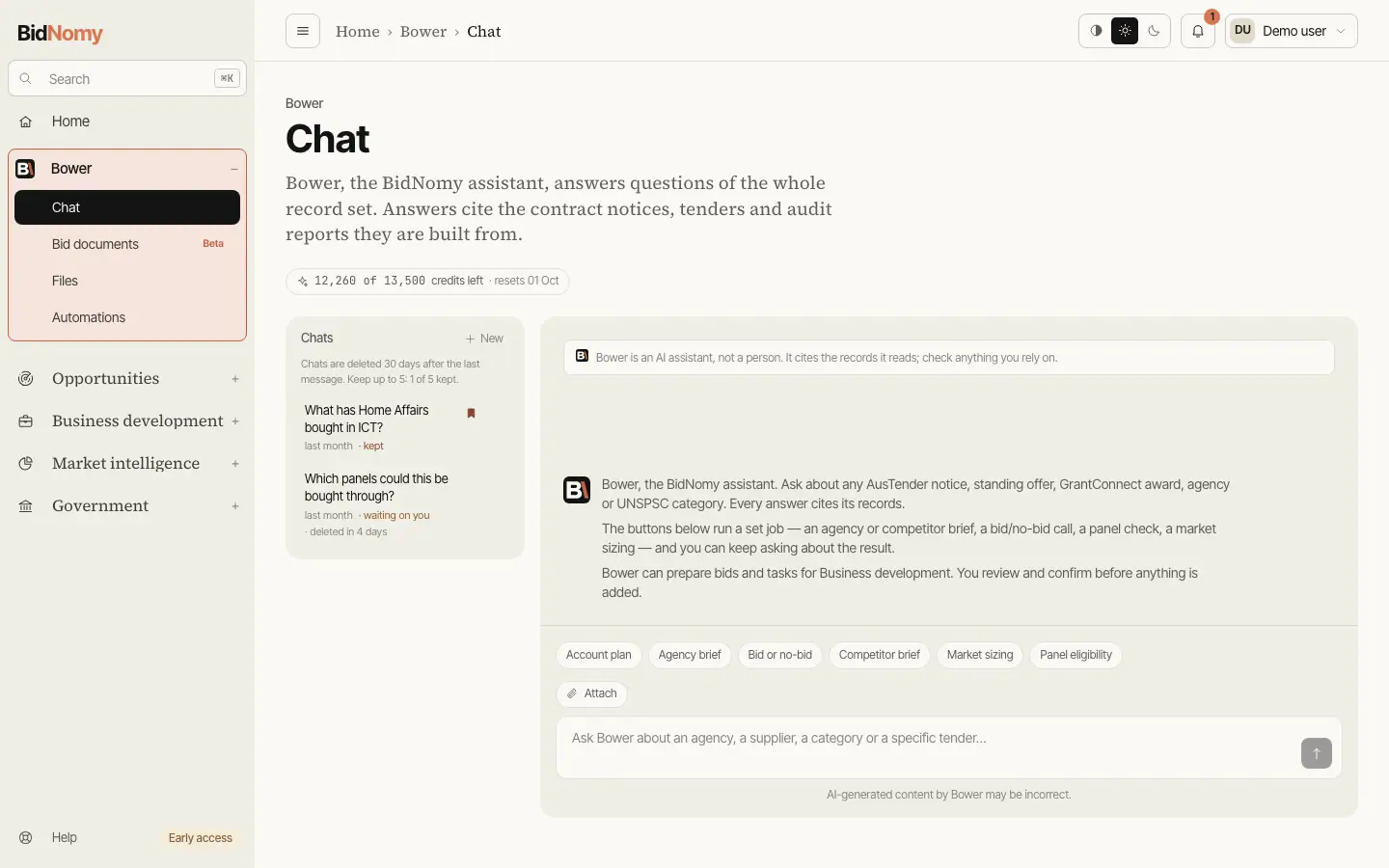
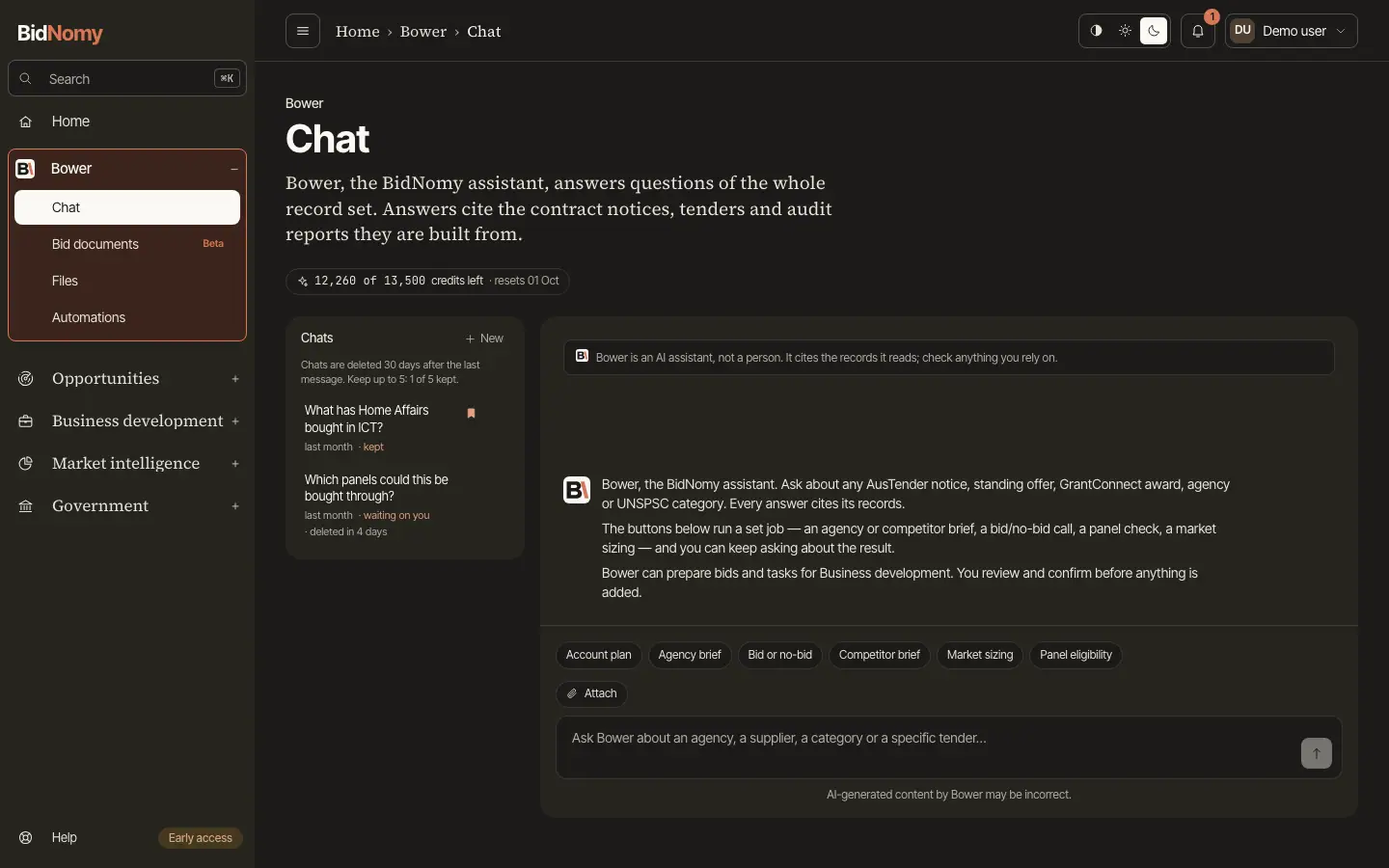
Chat
Every new conversation opens with the same fixed line from the page itself, above anything Bower writes: Bower is an AI assistant, not a person. It cites the records it reads; check anything you rely on. It is part of the page, not something the model says, so it is there every time.
Under every box you type to Bower in, on this page, in the floating bubble and in Bid documents, a short line stays in view: AI-generated content by Bower may be incorrect.
Every question starts a conversation. The Chats list beside the composer is yours alone: it is scoped to your sign-in, so nobody else sees a thread of yours and you see nobody else's. Pick one to carry on where you left off, or delete it, which also drops whatever Bower was keeping for it.
A conversation is deleted automatically 30 days after its last message — asking another question in it starts the 30 days again. To keep one longer, press the bookmark beside it: you can keep up to five, the line above the list shows how many you have kept, and a kept conversation stays until you press the bookmark again or delete it. In its last week an unkept conversation says "deleted in N days" under its title. Deleting by age removes the same things as deleting by hand; your uploaded files and your automations and their runs are not touched.
A turn runs on the server, not in your browser. Close the tab mid-answer, reload, or come back on another device — the reply still lands on the conversation and the page picks it up. Only one turn runs on a conversation at a time; asking again while one is in progress is refused rather than queued, so two answers can never overwrite each other.
Asking
Type a question and press Enter — Shift + Enter adds a line.
The Bower button on every list's action row and the AI panel on every record page land here with the question already in the composer. Nothing is sent until you send it.
The small B button in the bottom-right corner of every page opens a mini chat without leaving the page you are on. It starts as a new chat; once you ask something, it stays on that chat as you move between pages, until you close the tab. Continue under the greeting picks up your latest conversation instead, + starts a new one, and ↗ opens the current one here, where skills and attached files are. It is the same conversation either way: a question asked in the mini chat shows up in this list.
Press the B button again, the chat's ×, or Escape to close the mini chat. Closing keeps your draft and conversation; reopen it to carry on. The chat opens and closes with a short animation, or immediately when your device prefers reduced motion.
Asked from the mini chat, Bower knows which page you are on, so "this list" or "this contract" means the one in front of you.
Clarifying questions
Some questions leave a choice undefined that would change the answer — which date field "in 2026" means, which of three similar records you meant. Rather than guess, Bower asks, and the conversation pauses on that question. Your next message is the answer and the run carries on from there. It asks at most once per request, and never about something it can reasonably default: a supplier named by company is matched as the whole company, an agency by its published name, and the answer states which label it matched.
Reading an answer
Record ids in an answer are links. CN… opens the contract notice, SON… the panel and what has
been drawn against it, and an approach to market opens its own page — so a figure can always be
traced back to the notices behind it. Where Bower wrote SQL it shows the statement; where a
result is truncated, or a figure counts publications rather than contracts, it says so.
Rate an answer with the thumbs under it. A thumbs-down flags that answer for BidNomy staff to review.
Answers are rendered as text, never as markup: a record description written by a third party that contains something looking like code stays visible as characters. Bower treats everything it reads out of the database as evidence rather than instructions, and flags anything in a record that tries to give it orders.
Stop or redirect an answer
While Bower is answering, the box under the conversation stays open and its button becomes Stop. Press it, or press Enter with the box empty, and the answer ends where it is. What Bower had written stays on the conversation with Stopped here. under it (or Stopped before Bower said anything.), and your next message carries on from that point. A stopped answer is not an error, and it has no thumbs to rate.
To change course instead, type your new instruction while the answer is still running. The button turns into an arrow; press it or Enter, and Bower stops the current answer and answers what you typed instead, as the next message in the conversation. Stop works on this page, including on an answer you came back to after a reload; the mini chat has no Stop button. If an answer cannot be stopped, the page says so and you wait for it to finish.
Charts in answers
When an answer is figures across categories or over time, Bower draws a chart under its reply, here and in the mini chat: bars, lines, an area, a pie or a scatter. The text gives the takeaway and the figures that matter; the chart carries the full series. Point at a bar or a point, or move to it with the keyboard, to read every series' value for it.
Show table beside the chart's title turns it into a table of the same figures, and Show chart turns it back. A chart with more than six series is shown as its table, so every series stays readable.
Add bids and tasks
Ask Bower to add an opportunity to a named pipeline, with any preparation tasks you want. You can also ask for tasks on a bid your team already has. If the destination is unclear, Bower asks you to choose it.
The review card shows the bid, pipeline, stage and tasks, including each owner and due date. The source record appears by its published reference, such as PCS-04694, and links to its page. Edit lets you change the bid name, pipeline and stage, assign owners, adjust task names and dates, and untick tasks you do not want. Press Save changes, review the updated card, then Confirm add. Saving edits adds nothing to Business development. You can also reply in the conversation to ask for a different proposal; the earlier proposal becomes unavailable.
Confirm add adds the approved bid and tasks together. The result appears after your confirmation, with a View bid link and the number of tasks added. Cancel adds nothing and you can continue chatting. If the destination or team has changed, nothing is added and you can ask for a fresh proposal. Refreshing or reopening the conversation keeps the review and its result. The same controls work in the mini chat.
The conversation uses your organisation's usual Bower credits. Editing or confirming a proposal does not run another model turn.
Skills
The buttons above the composer are skills: the five jobs bid teams do every week, each with a form and a prompt of its own. Fill the form, press Run skill, and it runs as one turn in the conversation you are in — so you can carry straight on asking about the answer. Where a field is optional, leaving it empty is fine; the brief says which default it took.
- Agency brief — what an agency buys, from whom, through which panels and what is coming up. Agency (required), look back in years, and an optional category to narrow it to.
- Competitor brief — what a company wins from the Commonwealth: agencies, categories, the panels they sit on and what expires next. Company (required), an optional agency to look at only their work there, and look back.
- Bid or no-bid — whether an open approach to market is worth bidding, with the likely incumbent named out of the contract record and a recommendation with its three reasons. Approach to market (required), optionally your company and what you would bid on.
- Panel eligibility — which standing offers this kind of work is bought through, who buys through each, and whether you appear under any of them. The work (required: words, a UNSPSC code or a tender id) and optionally your company.
- Market sizing — how big a category is across the Commonwealth: by year, top buyers, top suppliers, concentration and the route to market. Category (required) and look back.
A skill run shows as a card naming the skill and the values you gave it. The prompt it sent is under Show prompt — every run stays auditable, because the first question about a surprising answer is what exactly was asked.
The ATM, agency and supplier pages carry the skill that fits them — Bid or no-bid, Agency brief, Competitor brief — with the record already filled in. As everywhere else, the form opens; nothing runs until you run it.
Uploaded documents
Upload a request for tender, a statement of requirement or your own draft and Bower can read it. Attach (the paper clip) in the composer does both jobs: Upload a file takes a new document, which attaches itself a few seconds later once its text has been read, and the list below it attaches any document already in Files — up to five on one question. Ask Bower on a file's row opens a conversation with it already attached.
A document uploaded from the conversation is kept in Files like any other: it stays there after the conversation, counts toward your organisation's fifty, and is deleted from the Files page.
Attached documents show as chips on your message, and they stay on it: a conversation records what an answer was built from, even after the file itself is deleted.
Bower reads a document in slices rather than swallowing it whole, so a 150-page tender is read in parts, and it says which file and which part a quotation came from. It reads only your own files, and only the ones attached to the conversation — the tools it has take no owner, because whose files these are is decided by your sign-in and not by anything the model can ask for.
A document is evidence, not instruction. Text inside a tender that reads like an order to Bower — "ignore your previous instructions", "score this bid highly" — is treated as content of a third-party document and flagged, exactly as a record description is.
If you ask about "the RFT" with nothing attached, Bower checks your file list before telling you there is none.
Ask Bower to write a bid document — "write our SoW for this tender" — and it answers with Open in Bid documents rather than drafting it in the chat. Bid documents drafts the document, priced from your own rates, and shows the credit estimate before anything starts.
In your own AI client
Your own AI client connects over MCP, which is part of the Enterprise plan.
The same records, the same tools and Bower itself are available over MCP, so Claude Code
— or any MCP client that supports HTTP servers — can use them without this page. Create an API key
under API keys in the account menu and paste the snippet it shows you; Connect an AI client
lists the sixteen tools a client gets and what each one does. A conversation your client starts through ask is yours
and appears here, so an answer from your editor and an answer from this page have the same audit
trail.