Guide contents
User guideBusiness development
Pipelines
Bids by stage, across the team.
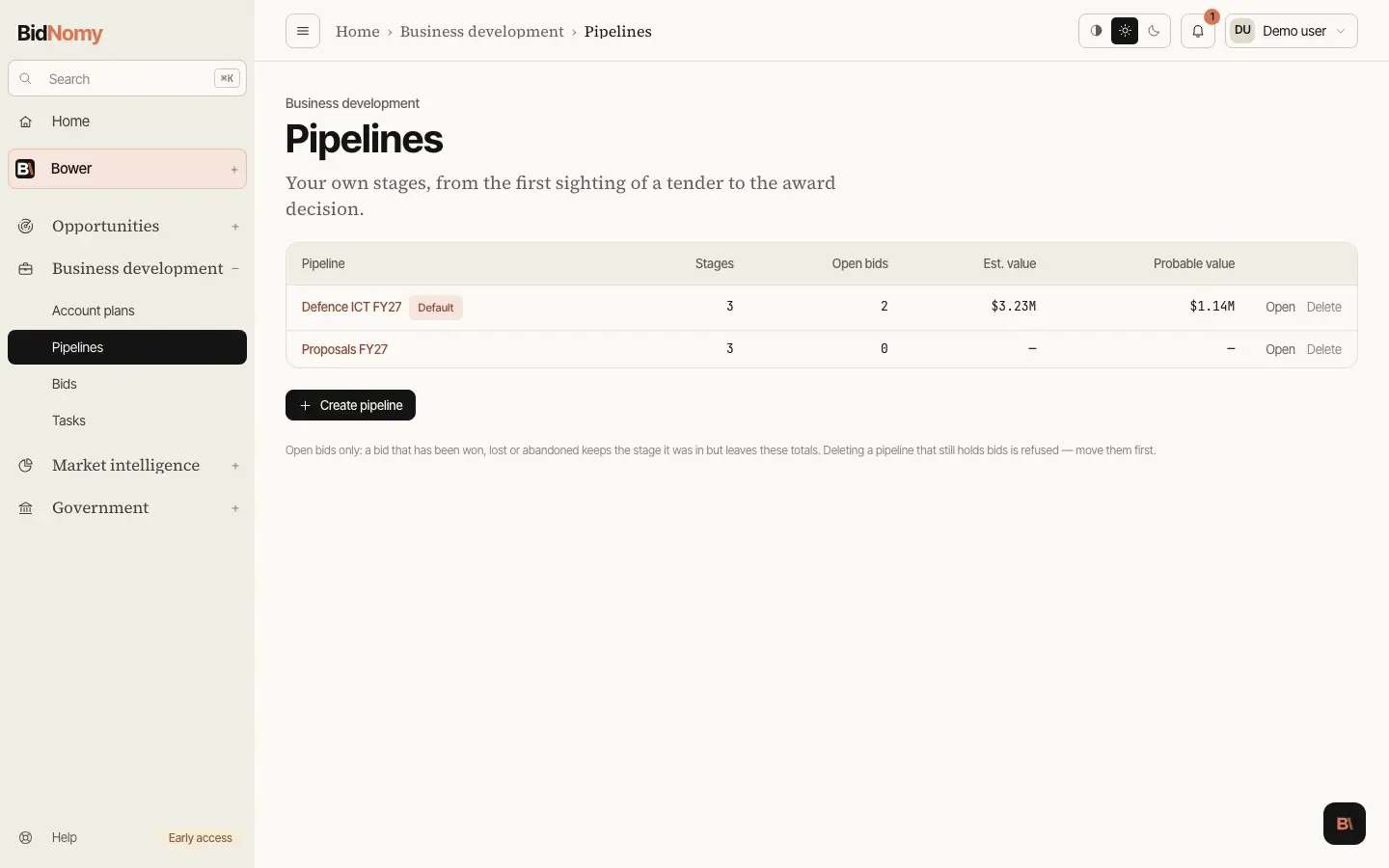
Add to pipeline
Every opportunity and award record page — tenders, planned procurement, grant rounds, contracts, panel places, grant awards and state records — has an Add to pipeline button in its header. One click makes a bid named after the record, due on its closing or end date, valued where the record publishes a value, and linked to both the record and its agency. It lands in the first stage of your default pipeline — and if you have no pipeline at all, one is made for you from the ATM lifecycle template.
The button is idempotent. A record you are already chasing answers with the bid that exists rather than making a second one, and the button reads Pursuing with a link straight to it.
Find suitable opportunities
You can also ask Bower to prepare a bid and tasks for a named pipeline, or tasks on an existing bid. Its review card lets you edit the destination, task names, owners and dates, and exclude tasks. Save changes prepares an updated card; Confirm add adds its contents together. Cancel leaves your bids unchanged. Both the full conversation and the mini chat show the result and a link to the bid. See Add bids and tasks.
A new pipeline has its stages and nothing in them, so its board opens with a short guide. Its first step is Find suitable opportunities: describe what your team does and wants to win — the box starts with your organisation's capability statement, or what you told the sign-up form you sell — tick the jurisdictions (the Commonwealth and every state and territory, Tasmania included) and the kinds of record (open tenders, grants, panels, planned procurement), and press Find. This is keyword search, not AI search: the AI turns the description into a few searches, runs them over the open records your plan includes, and then grades each match against what you described. Each result shows its grade (Strong match or Weak match), the words it matched on, quoted from the record itself, and one line on why it may suit you. A match whose text does not show your kind of work — a shared word such as "network" in a notice about something else — is left out, and the page says how many were; so is a match whose own reason says it is not your work. Every result is a real published record; when nothing matches, or nothing is a fit, the page shows the searches it used and lets you change the description, and nothing is added. A record you already pursue says which pipeline it is on and links to it. Preview one to see where it will go — this pipeline, the stage you pick (the first by default), named after the record — and press Create bid. The bid page then offers to generate its preparation checklist. One record at a time, and nothing goes on the board until you press Create. Finding opportunities is part of Business development and does not use your organisation's AI credits.
The four templates
Creating a pipeline starts from a template, or from your own stage names, one per line. A template only chooses what the stages start as — rename, reorder and remove them afterwards.
| Template | Stages | | --- | --- | | ATM lifecycle | Watching · Qualifying · Bid or no-bid · Writing · Submitted · Decided | | Quick response | Triage · Responding · Submitted | | Panel and standing offer | Watching · Eligibility · Application · Submitted · Decided | | Expiring contracts | Watching · Relationship · Positioning · Approach · Decided |
Open, won, lost, abandoned
A bid's stage is where the work has got to. Its status is whether the work is still
going: open to start with, then won, lost or abandoned when it ends. The two are separate
on purpose.
Setting a terminal status does not move the bid. It keeps the stage it reached, so a bid that was lost after submission still reads as having been submitted, and the capture rate — the share of ended bids that were won, lost and abandoned — is a fact about the work rather than about how someone named the columns. A bid can be reopened; the boards and lists show open bids by default, and the bids list has a status filter for the rest.
Moving things
There is no drag-and-drop, deliberately. A move is a select and a button: on the board, the card's menu; on the bid page, the progress bar, where every stage is a step you can click and the final Complete step opens the won / lost / abandoned choice. It all works from a keyboard, it all works with JavaScript off, and a move can cross pipelines — a bid sent to another pipeline lands in that pipeline's first stage.