Guide contents
Bid documents
Have Bower draft a Statement of Work, a proposal, a compliance matrix or an executive summary from the tender and your own prices.
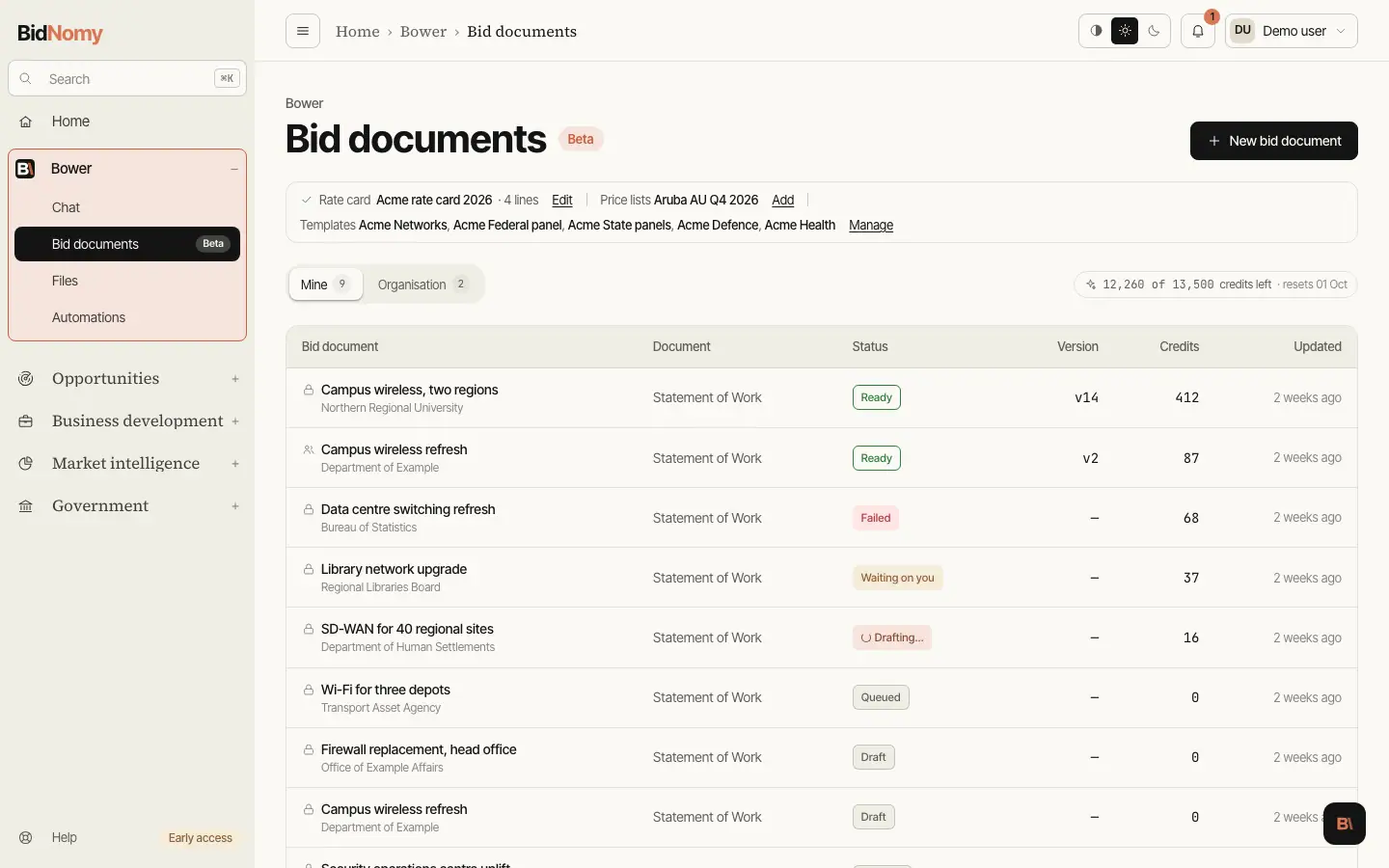
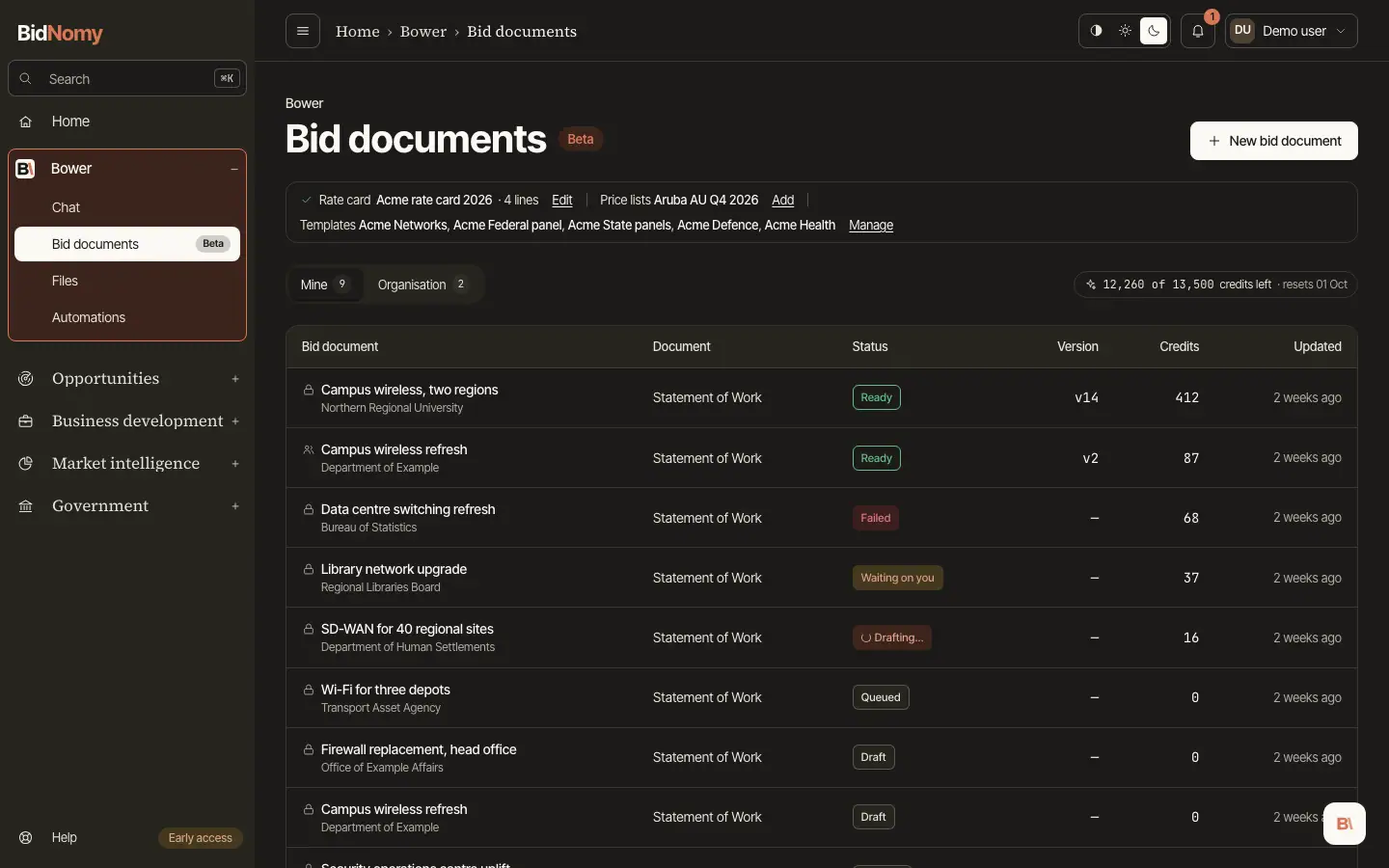
Bid documents, under Bower in the sidebar, drafts a bid document for you: a Statement of Work, a solution proposal, a compliance matrix or an executive summary. Bower reads the tender and your files, asks what it still needs, prices the work from your organisation's rate card and price lists, and writes the document. You download it as PDF, Word, HTML or Markdown.
Bid documents is in beta: check every figure and claim before you send a document.
Before you start
Generate needs a rate card. It is what your organisation charges for people and services: each role or item, per hour, day or each, ex GST. Owners and admins add it with Add rate card at the top of Bid documents, and change it with Edit. Members can view it.
- Also called lists other names for a role, so "Lead Engineer" in a tender finds your Senior Engineer rate.
- Project management adds a % of the other labour cost, priced as the role you choose. The document states the basis under the pricing, for example "Project management: 10% of the other labour cost."
- An item priced each, such as an after-hours cutover, is listed as a service, not equipment.
- A change applies from the next Generate. Documents already made keep their rates.
Import a rate card from a file
In the rate-card dialog, Import from a file fills the lines from a file in Files, or one you upload.
- A spreadsheet (Excel or CSV) is free. It is read by its column names: role, also called, per, rate. Template CSV gives you a file with those columns.
- A PDF or Word file costs about 1 credit. Bower reads it. If it finds no rates, nothing is charged.
- Every rate is checked against the file. Lines to look at are flagged with the reason: two rates (the first is in), no rate, a rate that isn't in the file, or a rate that looks like it includes GST. Pick an answer or type the rate.
- Nothing is saved until you press Save. Undo puts the form back as it was.
Add a price list
Price lists are optional: supplier product prices. Without one, Bower asks you for each item's price. Owners and admins press Add price list and choose a CSV or Excel file. It costs 0 credits.
- The file needs three columns: part number, description and unit price, ex GST. Other columns are ignored. Template CSV gives you one.
- Columns are matched by name first. When a name isn't one we know, the column is guessed from what is in it, with the reason shown. Check them, and change any from its menu.
- If the prices look like they include GST, you're told before you add it.
- Rows that will be skipped are listed with their row number and why, such as a price of "POA", before and after Add. Fix them in the file and add it again, or Bower asks for those prices when it needs them. Section headings are skipped too; there is nothing to fix.
- A file without the columns says which are missing and which names work.
Start a bid document
- Press New bid document, pick the document, and give it a title if you like. The document type is fixed from here on.
- Tell Bower about the work in the chat: pick the tender with Tender, attach the tender documents with Files, or describe the scope. Tender lists open tenders closing soonest first; search by title, agency or ID. Not listed? Paste the ATM ID or the AusTender link in the chat and Bower attaches it. The tender gives the notice (title, agency, dates); the RFT pack is still your upload, so add it with Files. Bower asks for anything missing — the client, the vendor, who installs, the support term — and you can answer with the buttons or in your own words. What you say about your own business, such as "We are an Aruba partner", goes into the document once, as you said it.
- If your organisation's ABN is linked (Your company; Link ABN under Before you start goes there), Bower offers past contracts that look relevant. Tick the ones to cite as experience, or choose None.
- When the Brief on the right says Complete, press Generate.
In the Brief, Tender shows the attached tender, its ID and when it closes: Open goes to its page, Remove takes it off. "Notice only" means no files are attached yet. About you holds what you said about your business; press Edit to change it. Prices names the rate card and price lists. Once a version exists, it names the ones that version was priced from. Sources the document can cite lists the tender and your files; the document ends with the same list.
You can also start from a conversation: ask Bower to write your SoW and it answers with Open in Bid documents, which opens a new bid document with the same documents attached.
Or start from a bid: press Draft a bid document at the top of any bid. The dialog opens with the bid's name as the title and, when the bid came from a tender, that tender attached. A bid with no tender still opens it, with just the title. Credits are used only when you press Generate.
Credits
A generated document is metered by stage, not by question. Before anything starts, Generate shows an estimate and your organisation's balance — for example "About 50–90 credits · balance 1,240" — and asks you to confirm. Credits come off as each stage finishes. If the balance is below the estimate the run still finishes; at zero it does not start until somebody buys a credit pack, the plan moves up, or the balance resets.
While it runs
The chat shows each stage: reading, analysing, pricing, drafting, checking and, when the check finds something, one fix. You can leave the page; the run carries on and the bid document's status shows in the list. Stop ends the run; finished stages stay charged.
If a line in the pricing has no price, the run pauses and asks. For each line, enter a unit price, a list price minus a %, or leave it as TBC. TBC lines are shown in the document and left out of the totals. Once every line is answered, the run continues.
A run that fails says why in one sentence. Try again starts a new run.
The document
Open on the file card shows the viewer:
- Document — the version as it will download. To change its look, open the Template dropdown and pick Default, Plain, one of BidNomy's Word templates or your organisation's own. With more than eight, type in Find a template. The choice is saved on the bid document and costs nothing.
- Check report — the code checks every document passes, and the review: what it found and what the fix changed.
- Markdown — edit the text yourself. Saving makes a new version at 0 credits after the code checks; manual edits are not reviewed.
- Versions — the latest three, with what changed, its credits and who made it. Show all lists every version.
- To confirm — the TBC price lines and the open items from the analysis. The first three show; Show more lists the rest, and clicking a cut-off item shows all of it.
Every download — PDF, Word, HTML or Markdown — carries a document ID such as BN-3F9A2-C71D0
in the footer of every page. It is the same for one version in every format, and it lets BidNomy
support tell which document and version a copy came from if you ask. It contains nothing about your
organisation.
To change the document, ask in the chat — "make support 5 years" — and Bower revises the sections that change and saves the next version. A revise that leaves a line without a price asks first, the same way as the first run. A revise keeps the version's prices; a new bid document re-prices from the current rate card and price lists.
Templates
Bid documents › Templates sets how downloads look. Default and Plain are built in. Owners and admins can add your organisation's own Word template; everyone in the organisation can use it.
BidNomy's Word templates
Three ready-made Word templates come with BidNomy, for organisations without one of their own: Corporate (navy and teal, a colour band on the cover), Modern (clean, one accent colour) and Classic (a formal serif with a centred cover, suits government panels). Each has a cover page, a header and footer with page numbers, and its own headings, lists and table style, on A4.
Use one as it is: choose it in a bid document's Template card, or Make default from its ⋯ menu. Its PDF and Word downloads are made from the Word file, like your own template's. To change one, choose Download .docx from its ⋯ menu, edit it in Word (colours, fonts, your own cover) and upload it as your own template. BidNomy's templates can't be renamed, replaced or deleted.
Your own Word template
- Choose Upload Word template and pick a .docx or .dotx (up to 10 MB). A PDF can't be used.
- Check the sample statement of work drawn in your template and what was found in it: cover, header and footer, headings, body text, tables and colours. Nothing is saved until Save template.
- Tick Make it the default for new documents if new bid documents should use it. A bid document you already have keeps its own template.
Your template's styles, cover, header and footer are kept. Put these placeholders anywhere in it,
headers and footers included: {{title}}, {{client}}, {{tender}}, {{date}}, {{version}},
{{company}}, {{logo}}. The date reads like 18 October 2026, and the company is your legal name, or your organisation's name if you haven't set one. {{logo}} becomes your organisation's logo (see below), at most 40 mm wide and 16 mm tall; without a logo it is left out. A line with an empty value, such as Tender with no tender number, is left out too, with a short label on the line above it (Prepared for). Put {{body}} where the document goes; without it, the document follows the cover.
If your template has no style for something (a third heading level, say), Word's default is used and
the check tells you.
PDF and Word both follow your template. HTML is close to it, and Markdown has no template. The ⋯ menu on a template has Make default, Preview, Download .docx, Replace file, Rename and Delete. Deleting a template moves the documents that used it back to Default.
Your logo
Owners and admins can put your organisation's logo on the cover of Default. Open the ⋯ menu on
the Default card and choose Add logo, then pick a PNG or JPEG of up to 1 MB. SVG files can't be
used. From then on, every Default download carries the logo above your organisation's name, in PDF,
Word and HTML, and so do bid documents you already have. BidNomy's Word templates show it on their
cover too, and so does any Word template of yours with {{logo}} in it. Plain stays black and
white. Replace logo and Remove logo are on the same menu.
Sharing
A bid document is Private until you switch it to Organisation. Members of your organisation can then open it, read the chat and download every version. Only the person who created a bid document can change it: generate, revise, stop or edit.
Deleting a bid document
Open the More menu (⋯) at the top of the bid document and choose Delete bid document. The creator can delete it, and so can an owner or admin once it is shared with the organisation. Its versions and chat go; the files stay in Files. Stop a run before you delete. Deleting can't be undone.