Guide contents
User guideBusiness development
Account plans
A plan for each agency account.
Account plans
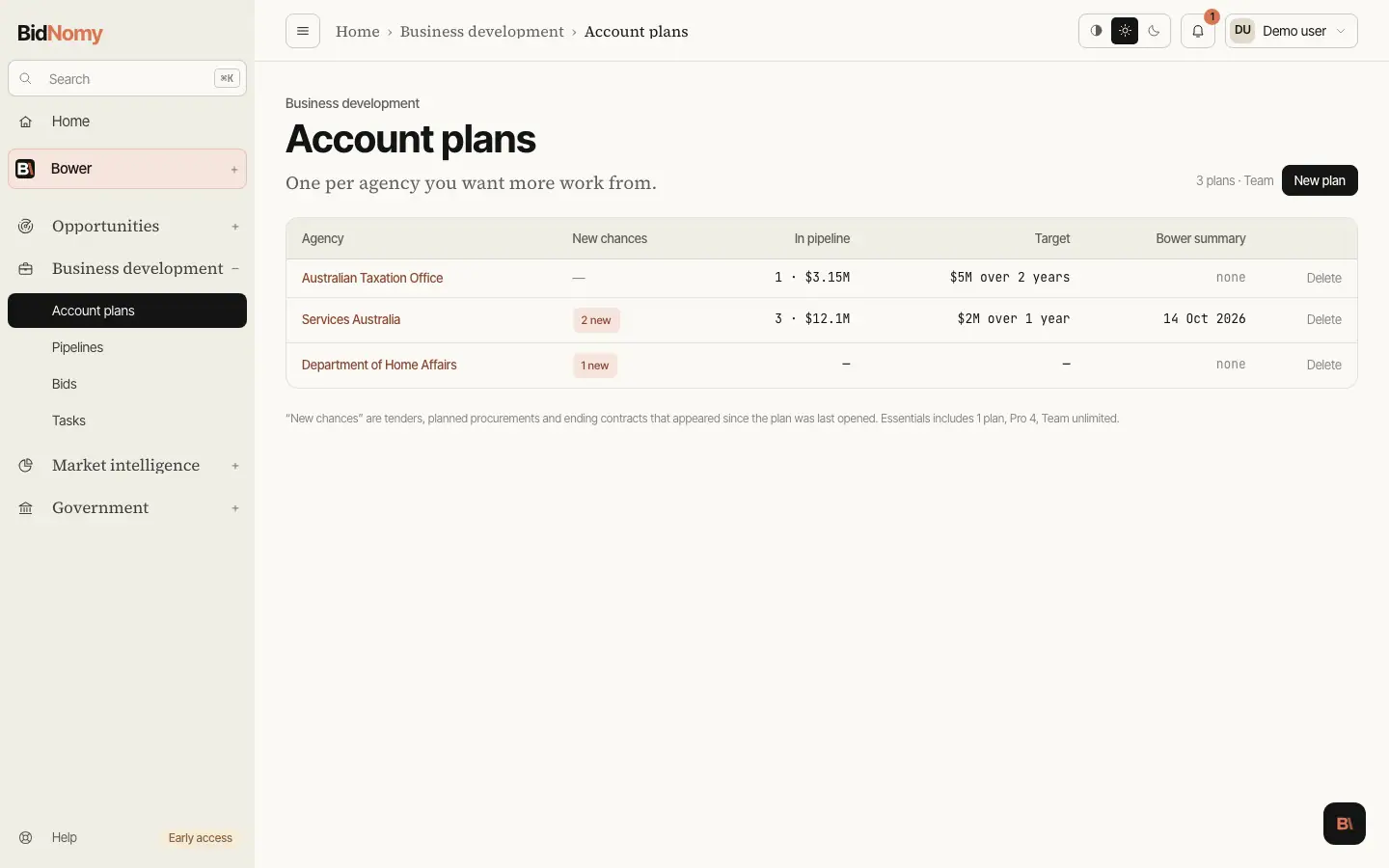
An account plan is one agency you want more work from. Open Account plans and choose New plan, or press Plan this account on any agency's page, or type the agency in ⌘K and pick Account plan for …. Every route opens the same page. Your team has one plan per agency, so opening an agency that already has one opens it.
New plan lists every agency, ten a page, biggest spend first. Switch between Commonwealth and States, then pick a state (NSW, VIC, QLD, WA, SA, TAS, ACT or NT). Search by name, short form or initials, and filter by portfolio (Commonwealth) or by body type (states). The list follows the search as you type; Enter or the search button works too. An agency your team already plans reads Open plan; the rest read Start plan. State plans need Pro or above.
The plan opens straight from the public record, free:
- The figures: what the agency signed in the last 12 months, what ends in the next 12, how much it buys through panels, what is open and planned now, and its APS staff.
- Where you stand: your own contracts with it, the ones ending soon, how many of its panels you are on, and who you compete with in your fields. It needs your ABN in Account › Your company. Without it, every chance is marked Low.
- Chances: one list of open tenders, planned procurements and contracts ending in the next 12 months, best fit first. Yours is a contract you hold, so it reads "Renew: …". Good is in your field. Needs panel is bought through a panel you are not on. Low is the rest. Within the same fit, open tenders come first (closing soonest first), then planned procurements (by quarter), then ending contracts. Contracts ending 3 to 12 months out come before those ending in the next 90 days, because those are usually too late to win. Fit always comes before kind, so a Good ending contract is listed above a Low open tender. A date in another year shows its year ("closes 31 Jul 2027"). A planned procurement whose quarter has passed reads Overdue. It is listed last and starts unticked.
- Blockers: the panels the agency buys through, and whether you are on each.
- Next 90 days: your own steps and Bower's, each with a due date, soonest first.
- Who's who: role titles only, from Directory.gov.au. During an open tender, contact only the officer named on the notice.
State agencies. A state agency's plan reads that state's own records. It has the figures (spend, ending, open tenders and contracts on record), Where you stand, Chances (open tenders and contracts ending) and Next 90 days. There are no planned procurements, panels or role titles for state agencies yet. Ask Bower works the same, from those fewer figures.
Ticking and adding. Good, Yours and Needs panel chances start ticked, and so do your steps. The bar at the bottom counts what is ticked. Add to pipeline shows what will be made, and nothing is written until you press Confirm. Chances already in your pipeline are skipped. Ticked steps become account tasks: they belong to the plan, not to a bid, and the Tasks page tags them Account. On Pro, Team and Enterprise the bids go into a pipeline named after the agency ("ATO account") with the stages Watch, Qualify, Pursue and Submitted. On Essentials they go into your one pipeline. Either way, each bid is tagged with the agency's short name. A tender closing within 14 days starts in Pursue, and everything else in Watch.
Ask Bower is optional. The card under the plan's title says what it would cost in AI credits and how many you have. Bower writes a short summary of where you stand, each sentence marked with its source, and suggests three to five steps for the next 90 days. It works only from the figures on the page, and an answer that cites a number or a name the page does not hold is thrown away and written again. If it still fails, you see a plain message and nothing is charged. Bower's steps start ticked, like yours. Rewrite replaces Bower's earlier steps but keeps yours and anything already added. In Bower's chat, the Account plan chip writes the same kind of plan for any agency.
Any bid for that agency shows Part of … account plan, however it was made. Essentials includes 1 account plan, Pro 4, and Team and Enterprise as many as you need.
Deleting a plan. Press Delete on its row in Account plans, or in the plan's header, then Delete plan to confirm. The plan, its steps and the account tasks made from them are deleted. The bids it added stay in your pipeline, with their own tasks, and so does the "ATO account" pipeline. Deleting frees a place on your plan's limit.