Guide contents
Files
Upload a tender document, have its text read out, and ask Bower what it actually says.
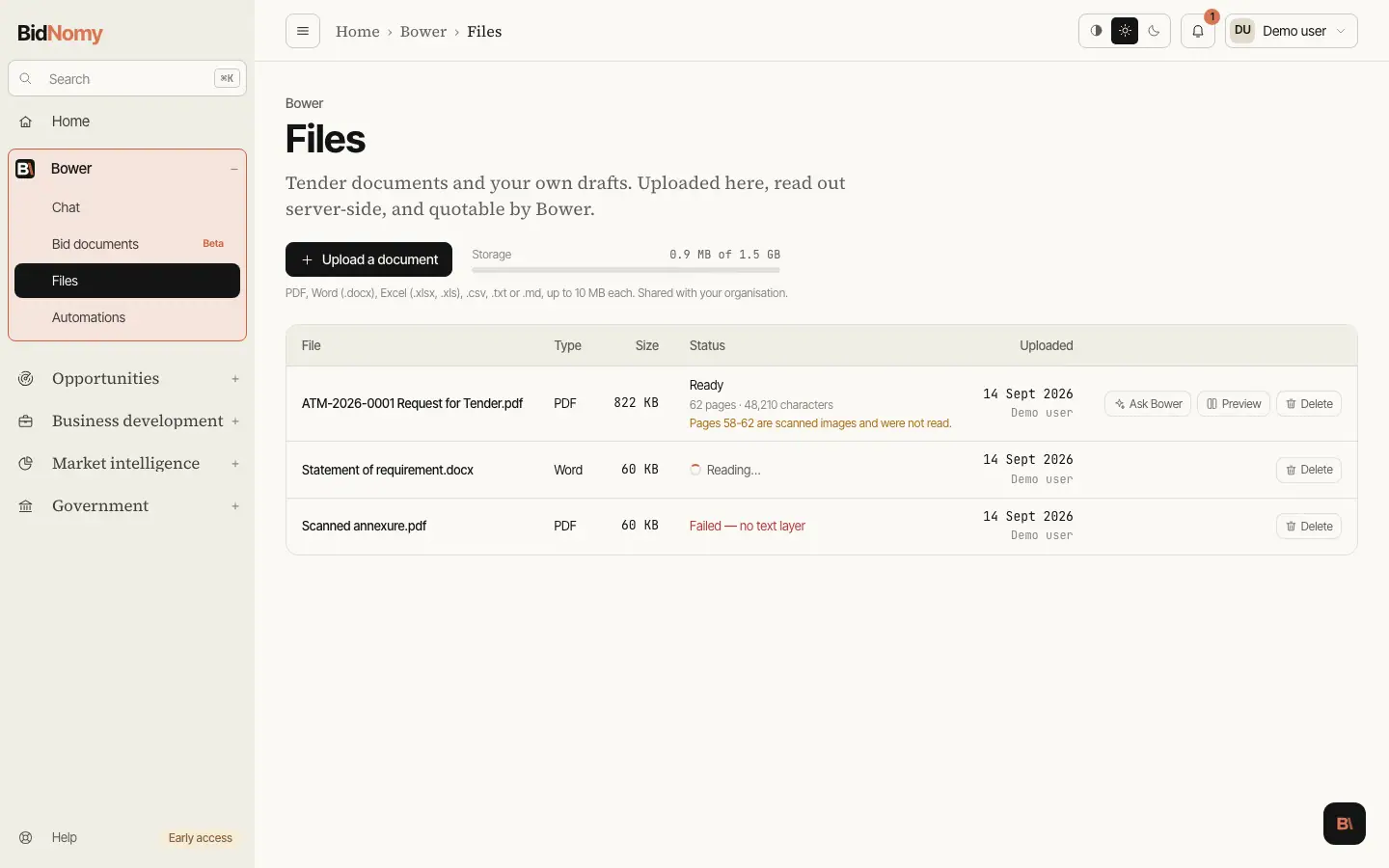
Files, under Bower in the sidebar, is where documents live: a request for tender, a statement of requirement, a previous response, your own draft. Upload one and its text is extracted server-side, which is what makes the next part possible — you can ask Bower, the BidNomy assistant, what the evaluation criteria weight, whether a mandatory condition has been met, or what the response template actually demands, and get an answer that quotes the document rather than summarising the idea of one.
Everything here is your organisation's own material. Everyone in your team can open a file and its text, it is never used to train a model, and deleting a file deletes both its text and the file itself. What the AI is sent, and when, is on AI and your data.
Uploading
Press Upload a document and pick a file — or upload from a conversation: Attach in a conversation with Bower has an Upload a file button that puts the document in this same list. Seven kinds are read:
| Kind | What is read |
| --- | --- |
| PDF (.pdf) | The text layer, page by page. Scanned pages are not read: the row names them, and a PDF that is all scan is refused — see below. |
| Word (.docx) | Paragraphs and table cells, in document order. |
| Text (.txt) | The file as it stands. |
| Markdown (.md) | The file as it stands. |
| Excel (.xlsx, .xls) | Every sheet, one line per row with the cells separated by a bar. Values, not formulas: a total is the number Excel shows. |
| CSV (.csv) | One line per row, the same way. Comma, semicolon and tab exports are all read. |
Storage and limits
Each file may be up to 10 MB, on every plan. Files are here for Bower to read, and a bigger file costs more to read than any answer needs — split a long tender pack into its parts instead.
Your organisation shares one storage allowance, set by its plan. Everyone's uploads count towards it:
| Plan | Storage | | --- | --- | | Essentials | 100 MB | | Pro, and the free trial | 400 MB | | Team | 300 MB a person (900 MB for three, 1.5 GB for five) | | Enterprise | 2 GB, or what your agreement says |
The bar beside Upload a document shows how much is used — "42 MB of 100 MB". Both limits are checked before anything is sent, so a file that is too large, or that would not fit, is refused at once with one line saying why: "Too large — files are limited to 10 MB", or "Not enough space — delete a file to free 18 MB". A file counts at the size actually stored. An organisation may also hold up to 500 files.
To free space, delete files you no longer need — the space comes back the moment you do. Nothing is ever deleted for you: files stay until someone in your team deletes them. If your plan ends, existing files can still be opened and deleted, but new uploads wait until a plan is chosen.
The upload goes straight from your browser to your organisation's storage folder — the file itself never passes through this app. The space is held for it first, so two people uploading at the same moment cannot both take the last of it; what the server is then given is a short-lived link to read the file once, which is how the text is extracted. The link expires in ten minutes and is not kept.
While it is being read
A new file shows as Reading… and the page refreshes itself until it is done. Extraction is a parser rather than a model, so it is usually seconds; the work finishes whether the tab stays open or not.
Then the row says one of:
- Ready, with what the document turned out to hold — pages for a PDF, and the number of characters of text. A document longer than 400,000 characters is kept to its first 400,000 and says so; the front of a tender is where the requirement lives. A spreadsheet has no page count; its row says the number of characters. A PDF that is partly a scan is still Ready, with a line naming what was left out: "Pages 12-18 are scanned images and were not read", and any page whose text was read but which also carries a large image — a diagram, a table pasted as a picture. The AI is told the same, so an answer says which pages it does not cover.
- Failed, with the reason in plain words. The common one is no text layer: a PDF that is a photograph of a page has no text to extract, and this step does not run OCR on it. That is said out loud rather than shown as an empty document. Re-save or export the file as a text PDF and upload it again.
Asking about a document
Ask Bower on a row opens a conversation with Bower with that document attached. In the conversation itself, Attach (the paper clip) above the composer attaches any of your ready documents — up to five on one question — or uploads a new one and attaches it once it is read.
Bower reads an attached document in slices, so a 150-page tender is read in parts rather than pushed whole into one answer, and it tells you which file and which part a quotation came from. It treats the contents as evidence and never as instructions: a document that contains something looking like an order to Bower is flagged rather than followed.
Preview and delete
Preview shows the first 20,000 characters of the extracted text — which is what Bower reads, so it is also how you check that a document came out readable. Layout, images and signatures are not part of it.
Delete removes the stored file and then its row, and its space comes back at once. If the stored file cannot be removed, the row stays and says so, so you can press Delete again — a file is never left taking up space it no longer shows. Under Uploaded each row says who added it: You, or the team member's name. A conversation that used the document keeps the name it was asked with, because that is the record of what an answer was built from.
Not yet
- Attaching a document to a bid — not built yet.
- Automated capture of AusTender's own tender documents — they sit behind a login, and their terms need reading before anything automated fetches them. Listed as pending a terms review rather than promised.
- OCR for scanned PDFs — scanned pages are named and skipped, and a PDF with no text at
all is refused with
no text layer. That is the honest answer for now.