Guide contents
Notifications
Where alerts and updates go.
Notifications
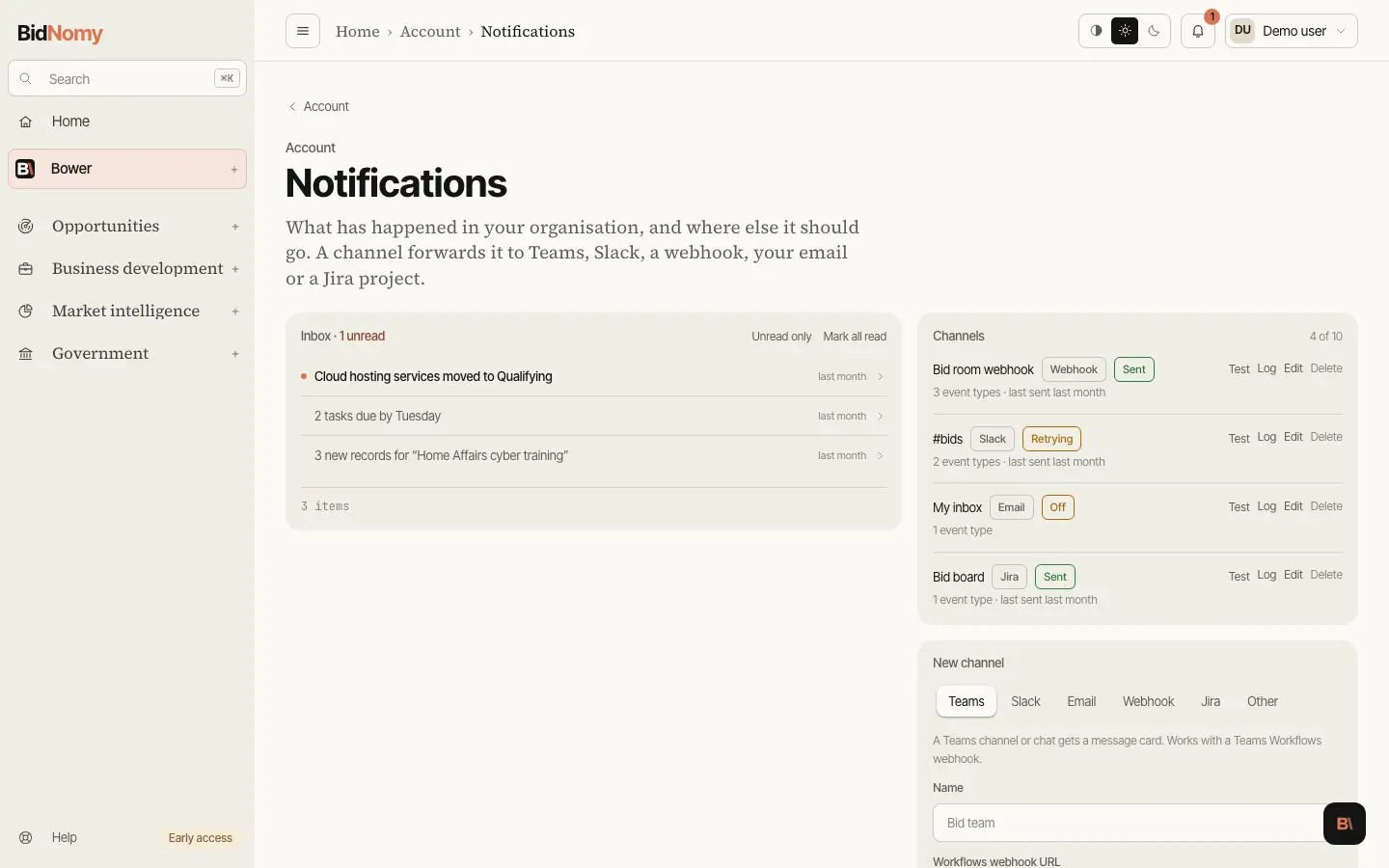
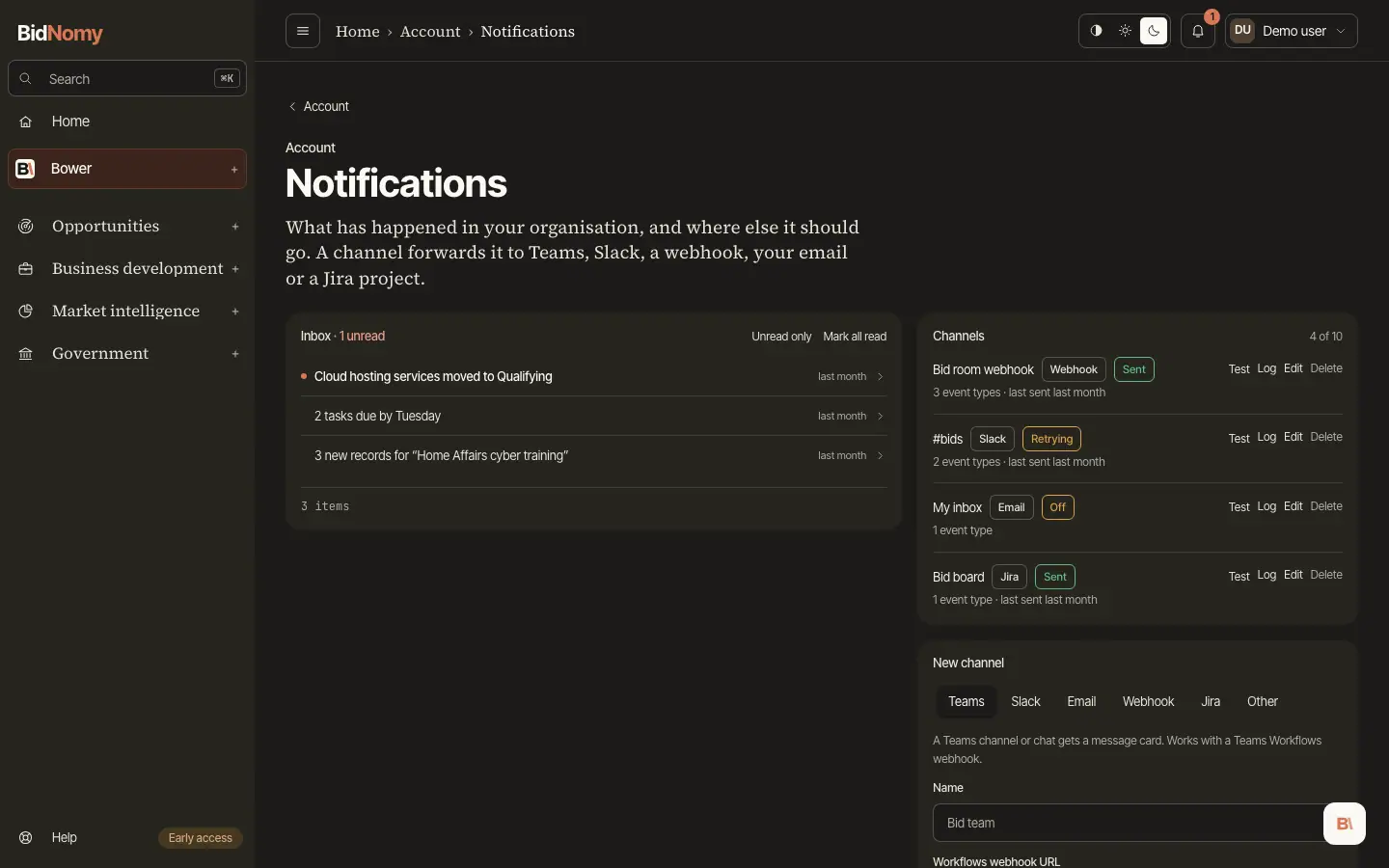
Everything that happens in your bids and tasks lands in one inbox, on the Notifications page, whether or not you have set anything else up: a bid created, moved, won, lost or deleted; a task added or ticked off; the tasks that are due in the next 48 hours; and an alert that found something. The bell in the top bar carries the unread count, and nothing is ever deleted to make room until you are five hundred rows deep.
The inbox shows ten at a time, one line each: a dot while it is unread, the title and when. Click a line to open it — the full text, its category and a link such as Open the bid → — and opening it marks it read. One opens at a time. The pager under the list says where you are ("1–10 of 108") and the page numbers move through the rest; Unread only narrows the list and the pages with it. Mark all read asks first, because it can't be undone. The inbox is the organisation's rather than yours: a colleague opening a row marks it read for everybody.
A channel sends those notifications somewhere else as well. There are five kinds: Teams, Slack, Email, Webhook and Jira. Every kind is on every plan, the trial included. You can have up to ten channels. Other asks us for a new kind and does not count toward the ten.
How channels work
- The inbox always fills. A channel only forwards what you choose.
- Under Send when…, tick the events the channel should carry. The list depends on the kind: Jira is offered only "A bid is added to a pipeline", and Email is not offered alert results.
- Test sends one test notification to that channel straight away, even while the channel is off, and shows the result.
- Log shows each delivery: Sent, Retrying or Gave up, the HTTP code the other end gave, the number of attempts, and the error line if it failed.
- Edit changes the name, the events, the settings, or turns the channel On or Off. Leave a box empty to keep what is stored.
- Secrets — URLs, signing secrets and tokens — are shown masked, as their last six characters. Nothing in BidNomy shows them in full again.
Microsoft Teams
Teams uses a Teams Workflows webhook. The old Office 365 "Incoming Webhook" connectors are retired by Microsoft and are not accepted.
To post in a channel
- In Teams, open the channel, then ⋯ › Workflows.
- Pick Post to a channel when a webhook request is received and finish the steps.
- Copy the URL it gives you.
To post in a group chat
- In the chat list, hover over the chat, then ⋯ › Workflows. Or use the + in the message box, then Workflows.
- Pick Post to a chat when a webhook request is received (it may be called Send webhook alerts to a chat) and finish the steps.
- Copy the URL it gives you.
To post to one person
- Use the same chat template.
- Set Post as to Flow bot, Post in to Chat with Flow bot, and Recipient to the person's email.
- Copy the URL it gives you.
Your own chat ("… (You)") can't receive cards: Teams accepts the request, but nothing appears. Pick a channel, a group chat or "Chat with Flow bot" instead.
In BidNomy
- Notifications › New channel › Teams.
- Give it a name and paste the URL into Workflows webhook URL. It starts with
https://and is onlogic.azure.comorpowerplatform.com. - Tick the events, then Add channel, then Test.
Treat the URL like a password: anyone who has it can post into that chat. If Workflows is missing in Teams, your organisation's IT may have blocked Power Automate — ask them.
What arrives: a card with the title, the text and an Open in BidNomy button.
To change the URL: delete the workflow in Teams and create it again, then Edit the channel and paste the new URL.
Slack
- Go to api.slack.com/apps and choose Create an App › Blank app.
- Name it, for example "BidNomy alerts", and pick your workspace. If Slack warns that the app has no scopes, choose Create Anyway.
- Open Incoming Webhooks and turn it On.
- Choose Add New Webhook, pick the channel, then Allow.
- Copy the URL. It starts with
https://hooks.slack.com/services/. - In BidNomy: New channel › Slack, paste it into Incoming webhook URL, tick the events, Add channel, then Test.
What arrives: a message with the title in bold, the text and an Open in BidNomy button.
Email goes to the address on your account. There is nothing to configure: name it, tick the events and add it. Alert results are not offered, because the alert email already sends them.
Webhook
A webhook sends each notification to a system of yours: a CRM, Zapier, Make, n8n or your own script.
- Have an HTTPS endpoint on a public host. Private, loopback and IP-address URLs are refused.
- New channel › Webhook. Paste the Endpoint URL.
- Enter a Signing secret of 16 to 200 characters. The page suggests one — copy it and keep a copy at your endpoint.
- Tick the events, Add channel, then Test.
The request. Each notification is one POST with Content-Type: application/json and these
headers:
X-GovAUTO-Signature—sha256=and the hex HMAC-SHA256 of the raw body, keyed with your secret.X-GovAUTO-Delivery— the delivery's id. A retry of the same delivery sends the same id, so use it to drop duplicates.X-GovAUTO-Event— the event type, such aspursuit.created.User-Agent—BidNomy-Notifications/1.0 (+https://bidnomy.com).
The body is JSON:
id— the notification's id.event— the event type:pursuit.created,pursuit.moved,pursuit.status_changed,pursuit.deleted,task.created,task.completed,task.due_soon,alert.resultsorchannel.test.title,body— the same words as the inbox.bodymay be null.path— the link inside BidNomy, such as/app/business-development/bids/….url— the full link (https://bidnomy.com+path).created_at— when it happened, ISO 8601 in UTC, such as2026-10-28T10:37:37.249635Z.subject— what it is about:type(pursuit,task,saved_searchorchannel),idandname.- Fields for that event. A moved bid has
fromandto(eachpipelineandstage); a new bid haspipeline,stage,est_value_aud,due_atandrecord; a test haschannel(id,kind,name).
{
  "body": "Renewal of the hosting contract.",
  "created_at": "2026-10-28T10:37:37.249635Z",
  "event": "pursuit.created",
  "id": "0b6c2f4e-6a1d-4f3e-9a51-2c7d8e9f0a12",
  "path": "/app/business-development/bids/5f1e…",
  "pipeline": "Defence ICT",
  "stage": "Qualifying",
  "subject": { "id": "5f1e…", "name": "ATO hosting", "type": "pursuit" },
  "title": "ATO hosting added to Defence ICT",
  "url": "https://bidnomy.com/app/business-development/bids/5f1e…"
}
Answer quickly. Any 2xx counts as delivered. Anything else, or no answer within ten seconds,
is a failure and is tried again (see Delivery and retries). Take the
request, answer 200, then do the slow work.
Webhook signature
Check the signature before you trust the body. Hash the raw bytes you received, not the parsed and re-encoded JSON, and compare in constant time.
import hashlib, hmac

def verify(secret: str, body: bytes, header: str) -> bool:
    expected = "sha256=" + hmac.new(secret.encode(), body, hashlib.sha256).hexdigest()
    return hmac.compare_digest(expected, header or "")
const crypto = require("node:crypto");

function verify(secret, rawBody, header) {
  const expected = Buffer.from(
    "sha256=" + crypto.createHmac("sha256", secret).update(rawBody).digest("hex"),
  );
  const given = Buffer.from(header || "");
  return given.length === expected.length && crypto.timingSafeEqual(given, expected);
}
In Node, read the body as a Buffer (for example express.raw({ type: "application/json" }))
so you hash exactly what was sent.
Jira
Jira Cloud only (https://yourteam.atlassian.net).
- Create an API token at id.atlassian.com › Security › API tokens › Create API token. Atlassian may email you a verification code first. Name it and pick an expiry.
- New channel › Jira. Fill in:
- Jira site —
https://yourteam.atlassian.net, with nothing after it. - Atlassian account email — the account the token belongs to.
- API token — the token from step 1.
- Project key — such as
BID. - Issue type — optional, Task if empty. It must exist in that project.
- Jira site —
- Tick "A bid is added to a pipeline", Add channel, then Test.
Test signs in to Jira with the email and token, then checks the project and the issue type. It does not create an issue.
Each new bid becomes one Jira issue, once: the bid's name as the summary, and its description, pipeline, stage, dates, value, win probability, source record and a link back. The issue is created by the account that owns the token. Jira carries new bids only — not moves, tasks or alerts.
Sending a bid to Jira by hand
A bid created before you added the Jira channel never made an issue. The bid page has a Send to Jira button for that. Once the issue exists the button shows its key, and pressing it again makes nothing new.
Asking for another channel
Use Other, the last choice under New channel. Say which tool and, if you like, what it should
do, then Send request. It becomes a support ticket — you see its number, such as BN-24 — and
we reply by email. It is not a channel and does not count toward the ten.
Delivery and retries
A change in BidNomy tries each delivery straight away. A failed delivery waits for the next sweep, which runs every ten minutes. It is tried again after at least 1, 5, 30 and then 120 minutes. After the fifth failed attempt the Log shows Gave up with the last code. A Test that fails is retried the same way.
The daily "tasks due" digest is raised at 07:00. If nothing is due, nothing is sent.
Troubleshooting notifications
| What you see | What to do |
| --- | --- |
| Retrying or Gave up with HTTP 401 or 403 | The credential was refused. For Jira, check the email and make a new token. For Teams or Slack, make a new URL and Edit the channel. |
| Retrying or Gave up with HTTP 404 | The webhook, workflow or Slack app was deleted, or the Jira project key is wrong or not visible to that account. |
| Jira: "issue type … not in project …" | Use an issue type that project has, such as Task, or leave Issue type empty. |
| Sent, but nothing in Teams | Teams accepted it. Open the workflow in Teams (Workflows) and check its run history. A workflow that posts to your own "(You)" chat never shows anything. |
| Slack: invalid_payload, no_service or channel_not_found | The webhook was removed or its channel archived. Add a new webhook in the Slack app and Edit the channel. |
| Webhook: Retrying with 5xx or no code (timeout) | Your endpoint is down or slow. Answer 2xx within ten seconds. It is retried after 1, 5, 30 and 120 minutes. |
| Nothing arrives at all | Check the channel is On and its Send when… boxes are ticked. A channel is never paused for you: it stays On until you turn it Off. |