Guide contents
User guideBusiness development
Bids
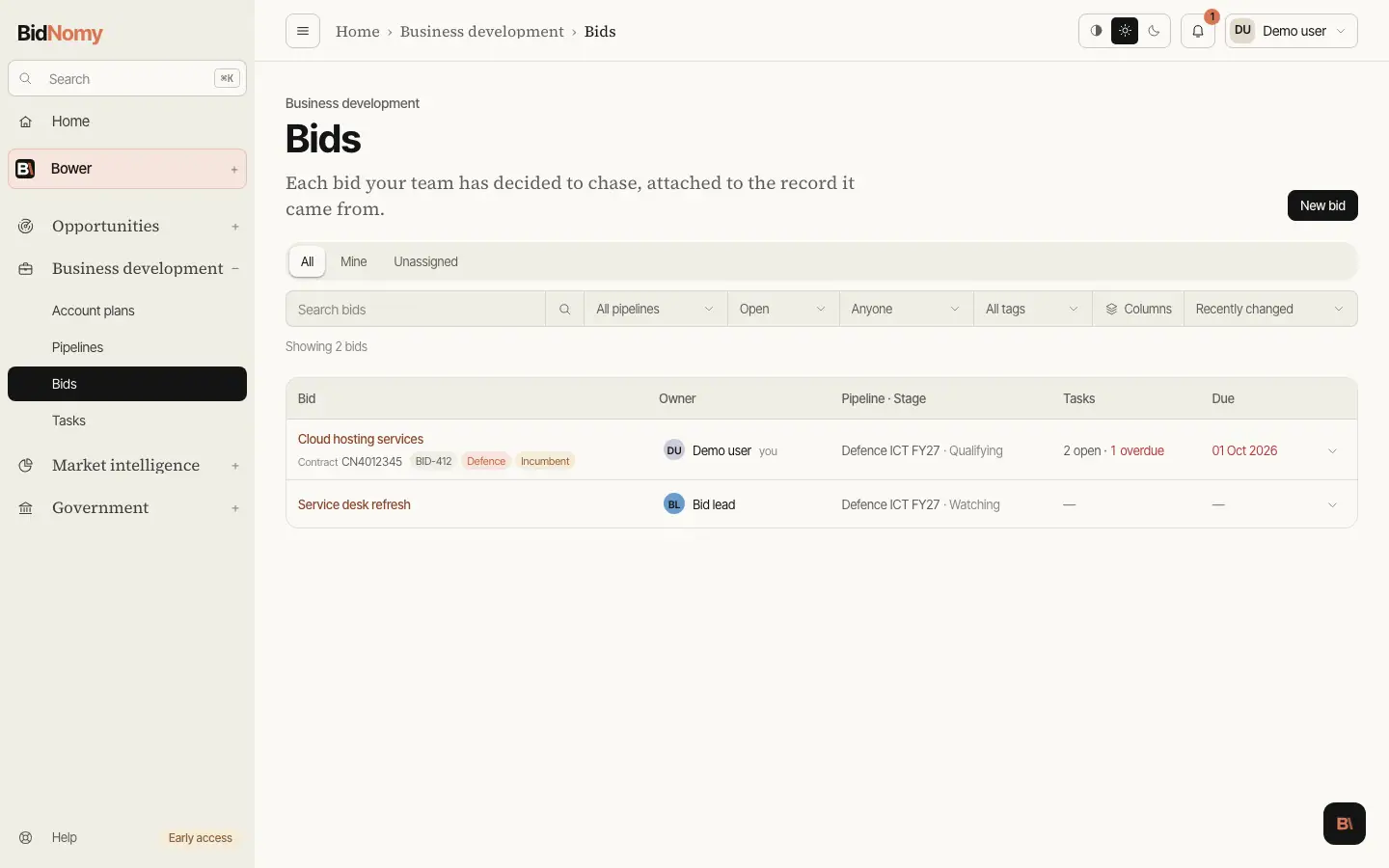
Each tender you are chasing, with owner, stage and value.
Draft a bid document
Draft a bid document at the top of a bid opens Bid documents with that bid's tender attached, ready to draft from.
AI on a bid
Two buttons on a bid ask the AI for a first draft. Analyse this opportunity sits in the Analysis card on the right of the bid page; Generate preparation checklist is in the Tasks section and opens its own page. Any member of the team can use either.
What is read. The bid and its tasks, up to ten of its linked records — only the ones your plan covers; a record outside it contributes its title and nothing else — the summary and details the product already holds for them, the files you tick (up to five ready documents from Bower › Files), and your organisation's capability statement. The statement is written by the owner or an administrator on your profile page, under Organisation; without one the analysis uses what you told the sign-up form you sell, and with neither it says the capability is unknown and gives a general analysis. You can also type what your team does for one run only; that is never stored.
What comes back. An analysis is an overview, the requirements — each marked official when a linked record or an attached file says so, with the evidence underneath, or suggestion when it is advice — how you fit, next steps and the open questions. A checklist is up to 25 draft tasks, each official or suggested, with a due date only where one is published or a suggested one marked as such. Both say when they were generated and what data they saw, and say so when the bid or a linked record has changed since.
Drafts, not changes. Nothing on the bid changes until you press a button. On the checklist page you tick the drafts you want, adjust a name, a priority or a date, and press Add; only those become tasks, each with a line saying which checklist it came from. A draft that looks like a task the bid already has is flagged with that task's name and skipped unless you tick Keep anyway. If some drafts are not added — a duplicate, the task limit, a name that is too long — the page says which and why, and Retry sends only those again. Saving the same checklist twice adds nothing twice. Save to notes on an analysis first shows you the exact text and where it goes, then appends it to the end of the description with a line saying it is AI-generated; nothing already written there is changed. Each analysis is saved once: afterwards the card says when it was saved, and a second click adds nothing.
No AI credits. Analyses, preparation checklists and finding opportunities are built into Business development (they are called Capture AI): they do not use your organisation's AI credits, and they work even when the pool is empty. Adding drafts as tasks and saving to notes are free too.